TL;DR: AI tools can cut your email writing time significantly in 2026 — and the best tools are free. ChatGPT drafts emails from scratch in seconds, Grammarly catches errors and checks tone in real time, and Google Gemini works directly inside Gmail. This guide covers exactly how to use each tool to write better emails in 2026.
How to use AI to write better emails in 2026 is one of the most practical skills any professional can develop right now. Email remains one of the most important forms of professional communication — and AI tools have made writing better emails faster and easier than ever.
An honest note on methodology: ChatGPT and Google Gemini are part of my daily work; Grammarly I’ve checked on its free plan, so its section leans on Grammarly’s documentation and verified user reviews. What AI email tools consistently deliver isn’t just time saved — a well-prompted draft is often stronger than a rushed manual first draft, particularly under time pressure.
Email is where a large share of the working day goes, so even small savings per message add up quickly. The tools in this guide make that saving achievable immediately, with no cost required.
If you only care about the short answer: use ChatGPT to draft emails from scratch, Grammarly to check tone before sending, and Google Gemini if you work primarily in Gmail. Together, they cover the full email writing workflow at no cost.
Should You Use AI for Email Writing?
- Do you send more than 10 professional emails per day? → Yes, AI will save you significant time
- Do you struggle with how to phrase difficult messages? → Yes, ChatGPT handles this effectively
- Are you a non-native English speaker? → Yes, Grammarly is particularly valuable
- Do you work primarily in Gmail? → Yes, Google Gemini integrates directly
- Do you only send a few emails per week? → The free plans still help — even occasional users benefit
Best AI Tools for Email Writing
Quick Comparison
| Tool | Best For | Free Plan | Price |
|---|---|---|---|
| ChatGPT | Drafting emails from scratch | ✅ Yes | Free / $20/month |
| Grammarly | Tone checking & proofreading | ✅ Yes | Free / $30/mo ($12 annual) |
| Google Gemini | Gmail integration | ✅ Yes | Free / $19.99/month |
For a deeper look at these tools individually, check out our Best AI Writing Tools in 2026 guide, our Grammarly Review 2026, and our Google Gemini Review 2026.
Why Use AI for Email Writing?
Before diving into the how-to, it’s worth understanding why AI email writing tools have become so widely adopted.
Speed: AI can draft a professional email in seconds — saving the time you’d spend staring at a blank screen or rewriting the same sentence five times.
Quality: AI tools catch grammar errors, awkward phrasing, and tone issues that humans often miss — especially when writing under time pressure.
Consistency: AI helps maintain a consistent professional tone across all your communications — particularly useful when you’re tired, stressed, or writing under deadline.
Confidence: For non-native English speakers or anyone who struggles with professional writing, AI provides a reliable safety net before sending important messages.
How to Use ChatGPT to Write Better Emails
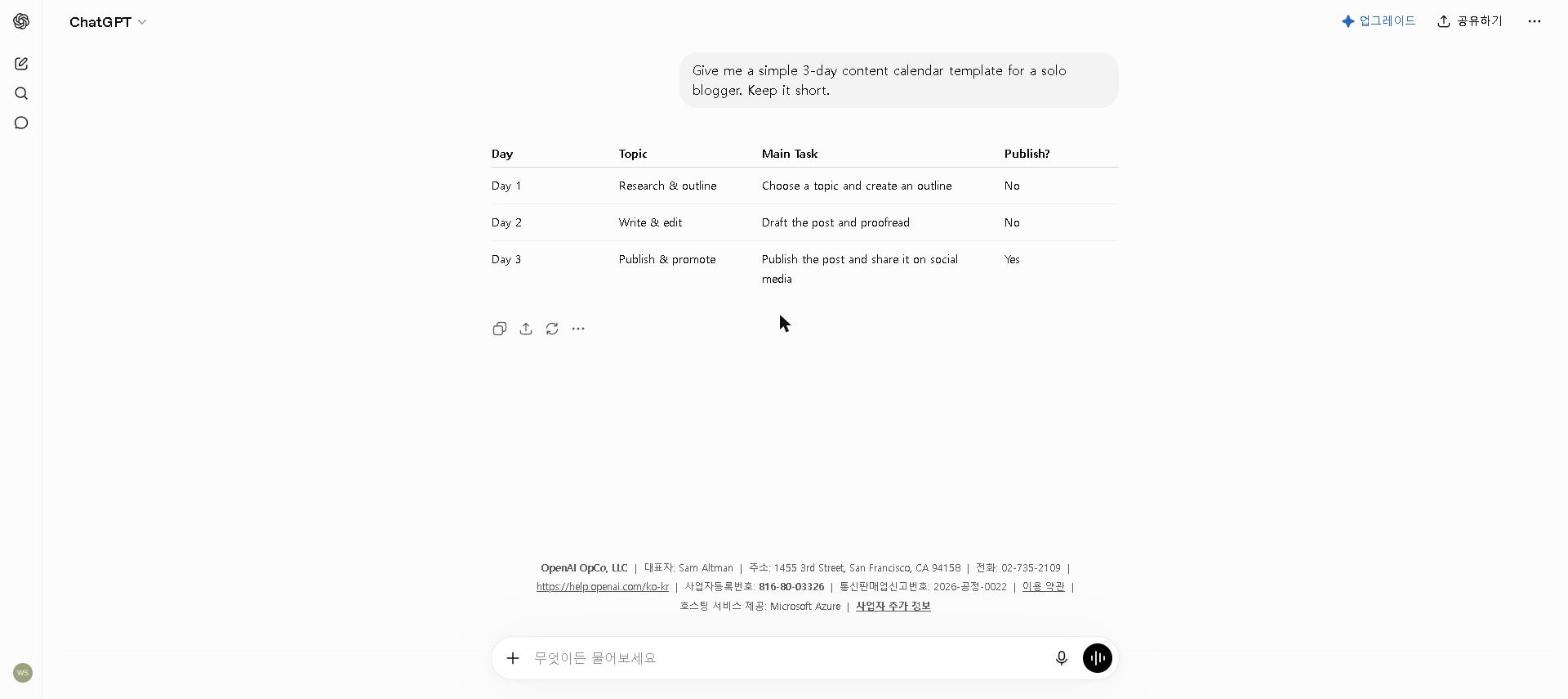
ChatGPT is the most powerful tool for email writing — here’s how to get the best results.
Step 1: Give Clear Context
The more context you give ChatGPT, the better the email will be. Always include:
- Who you’re writing to (client, colleague, manager, stranger)
- What you want to achieve (follow up, request, apologize, pitch)
- The tone you want (formal, friendly, direct, diplomatic)
- Key points to include
- Desired length
Step 2: Use Specific Prompts
Example prompt for a follow-up email:
Write a professional follow-up email to a potential client who attended our product demo last week but hasn’t responded. Keep it friendly but direct, under 100 words, and include a clear call to action to schedule a follow-up call.
Example prompt for a cold outreach email:
Write a cold outreach email to a marketing manager at a mid-sized e-commerce company. I want to pitch our AI content writing service. Keep it concise, personalized, and focused on the value we provide. Under 150 words.
Example prompt for a difficult message:
Write a professional email declining a project request from a long-term client. Be honest about our capacity constraints, express genuine appreciation for their continued trust, and leave the door open for future work. Under 150 words.
Step 3: Refine Iteratively
Don’t accept the first draft as final. Ask ChatGPT to:
- “Make it shorter”
- “Make it more formal”
- “Add a sense of urgency without being pushy”
- “Make the opening line more engaging”
- “Remove any phrases that sound generic”
Our Take
Prompt specificity is consistently the biggest factor in output quality: a vague prompt like “write a follow-up email” produces generic output that needs heavy editing, while a prompt that specifies the recipient, the goal, the tone, and the key points produces something close to send-ready on the first try. That gap — driven by prompt quality rather than the tool itself — matters most for high-stakes emails, where a generic-sounding message is the difference between getting a response and being ignored.
How to Use Grammarly for Email Writing
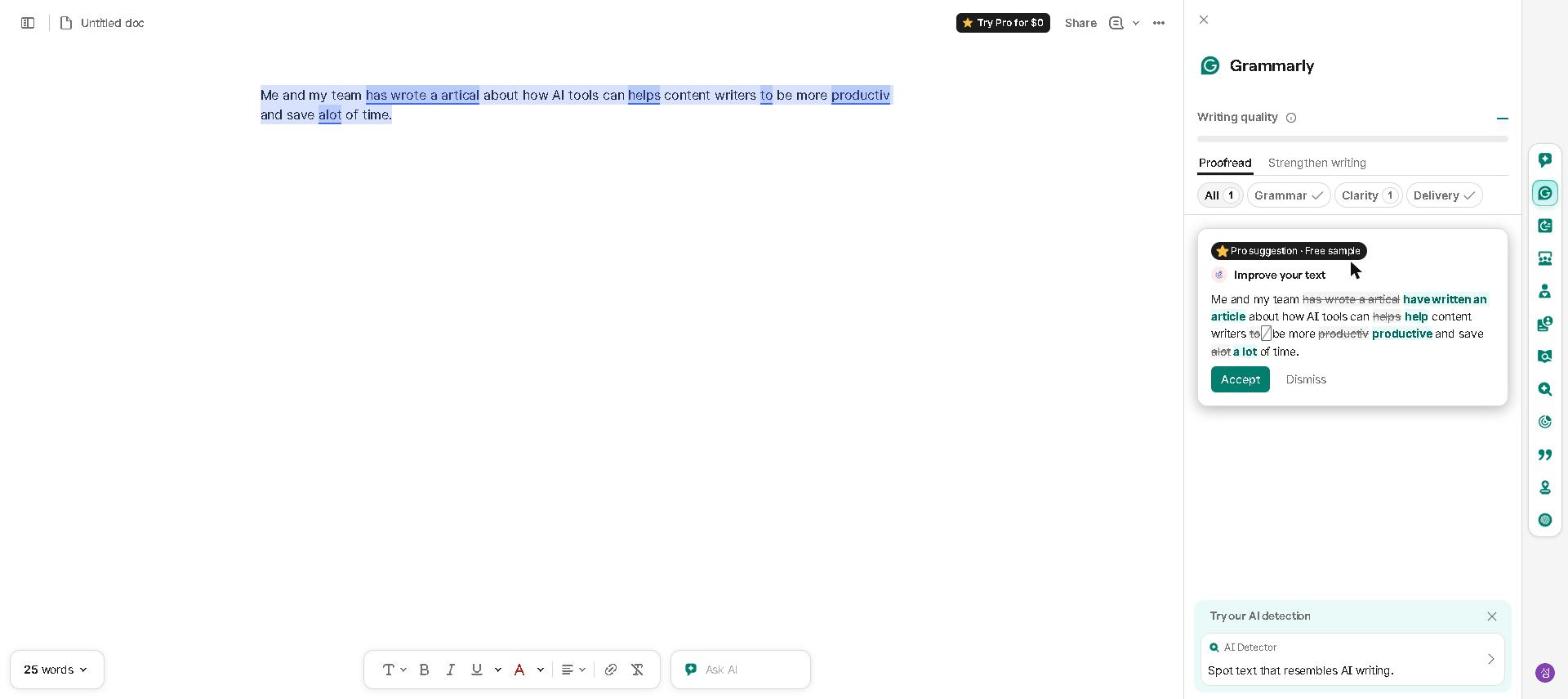
Grammarly works differently from ChatGPT — instead of drafting emails from scratch, it improves what you’ve already written.
Step 1: Install the Grammarly Extension
Download the Grammarly browser extension — it works automatically inside Gmail, Outlook, and most other email clients.
Step 2: Write Your Draft
Write your email as you normally would — don’t worry too much about perfection at this stage.
Step 3: Review Grammarly’s Suggestions
Grammarly highlights issues in real time:
- Red underlines: Grammar and spelling errors
- Blue underlines: Style and clarity suggestions
- Tone indicator: Shows how your email might be perceived
Step 4: Check the Tone Score
Before sending any important email, check that the tone matches your intention. Grammarly’s tone detection is particularly valuable for sensitive communications — where the difference between “firm” and “aggressive” can determine whether the relationship survives the message.
Our Take
Grammarly’s tone detection is designed for exactly this scenario: catching a draft that reads as more aggressive or dismissive than intended, particularly during a stressful or high-stakes exchange where the writer is too close to the situation to notice the tone slip themselves. For anyone who sends high-stakes emails regularly, that real-time feedback is worth the installation time alone. For a full breakdown, see our Grammarly Review 2026.
How to Use Google Gemini for Email Writing
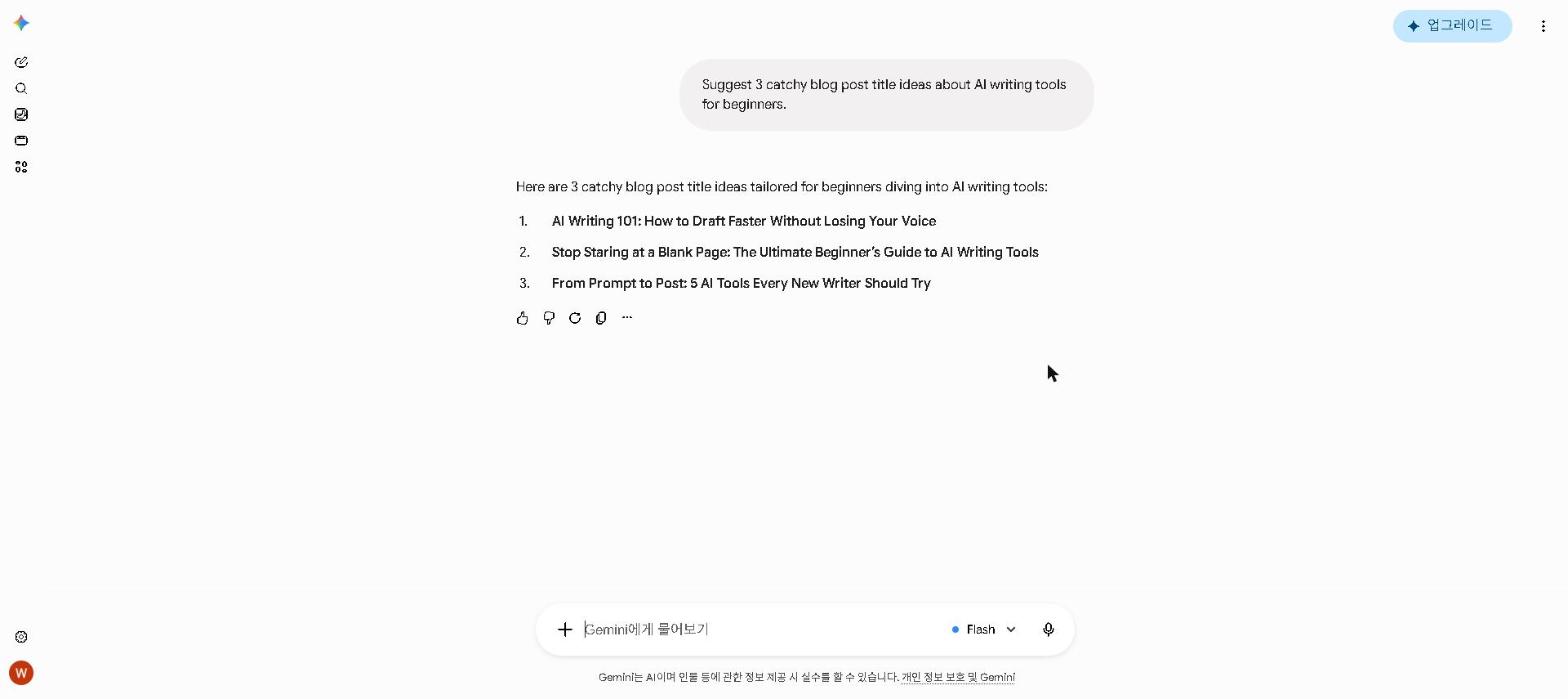
For Gmail users, Google Gemini offers the most seamless email writing experience — working directly inside your inbox without switching apps.
How to Use Gemini in Gmail
- Open a new email compose window in Gmail
- Click the Gemini icon in the compose toolbar
- Describe the email you want to write
- Gemini generates a draft directly in the compose window
- Edit as needed and send
Best Use Cases for Gemini in Gmail
- Quick professional replies that need to be polished but fast
- Summarizing long email threads before responding
- Drafting responses to emails already in your inbox
For a full breakdown of Google Gemini’s features, check out our Google Gemini Review 2026.
Common Email Types and How to Use AI for Each
Cold Outreach Emails
Best tool: ChatGPT
Prompt tip: Include the recipient’s role, your value proposition, and a specific call to action. Keep it under 150 words.
Follow-Up Emails
Best tool: ChatGPT or Grammarly
Prompt tip: Mention the previous interaction, express continued interest, and make it easy for them to respond.
Apology Emails
Best tool: ChatGPT
Prompt tip: Be specific about what went wrong, take clear responsibility, and outline what you’re doing to fix it.
Internal Team Updates
Best tool: ChatGPT or Gemini
Prompt tip: Ask for a concise summary format with clear sections for updates, blockers, and next steps.
Difficult or Sensitive Emails
Best tool: ChatGPT + Grammarly
Prompt tip: Use ChatGPT to draft, then Grammarly to check tone before sending.
Tips for Getting the Best Results from AI Email Writing
Be specific about length. Tell the AI exactly how long you want the email to be. “Under 100 words” produces very different results from “around 300 words.”
Always personalize. AI email drafts are starting points, not final products. Always add a personal touch — a specific reference to the recipient, a shared experience, or a detail that shows you’ve done your homework.
Check the tone before sending. Even a well-written AI email can miss the intended tone. Read it out loud before sending — if it doesn’t sound like you, adjust it.
Use AI for structure, your voice for personality. The best emails combine AI efficiency with human authenticity. Use AI to handle the structure and polish — then add your own voice.
Who This Is NOT For
Skip AI email writing tools if you:
- Only send a handful of casual emails per week — the time investment in learning these tools won’t pay off at very low volume
- Work in an industry where AI-assisted communication is restricted — verify your organization’s policy first
- Prefer to write all communications manually as a matter of personal principle — that’s a legitimate choice, particularly for relationship-heavy roles
- Need to communicate in highly technical or specialized language — AI tools occasionally get domain-specific terminology wrong
Frequently Asked Questions
Is AI email writing detectable?
AI-generated emails can sometimes be detected by AI detection tools — particularly if they’re used verbatim without personalization. The best approach is to use AI as a starting point and always add your own voice, specific details, and personal touches before sending.
Which is better — ChatGPT or Grammarly for emails?
They serve different purposes. ChatGPT is better for drafting emails from scratch. Grammarly is better for improving emails you’ve already written. For the best results, use both: ChatGPT to draft, Grammarly to polish.
Is Gemini better than ChatGPT for Gmail users?
For quick, in-Gmail drafting, Gemini is more convenient. For higher quality drafts with more control over the output, ChatGPT produces better results. For our full comparison, see our ChatGPT vs Claude 2026 guide.
Final Thoughts
AI has transformed email writing in 2026. With tools like ChatGPT, Grammarly, and Google Gemini, writing professional, effective emails faster than ever is within reach for everyone — at no cost.
Start with ChatGPT for drafting and Grammarly for proofreading — together, they cover the full email writing workflow. Once you’ve built the habit, you’ll wonder how you managed without them.
Have you used AI tools to improve your email writing? Share your experience in the comments below!
Last updated: September 2026
Written by Ian Sung — IT professional working in automation, scripting and workflow tooling. ChatGPT, Claude and Google Gemini are part of my daily work; every other tool covered here is assessed from a free-plan check, official documentation and verified user reviews, and each review says which applies.